 SeeingSky
SimFly Linker
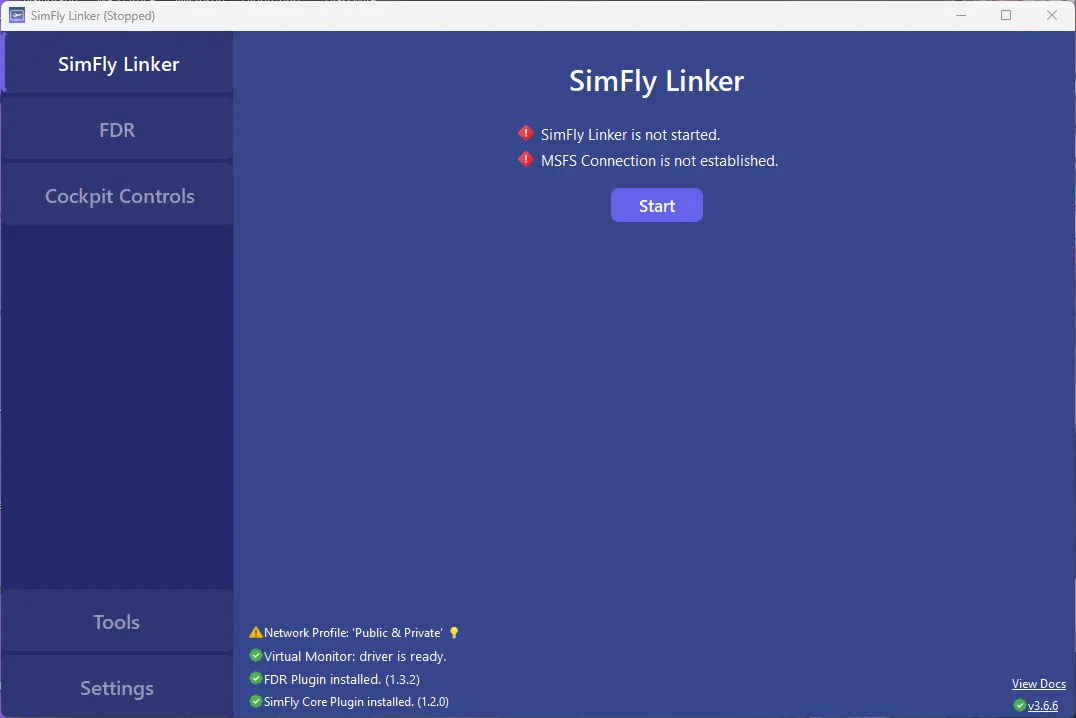
SimFly Linker is a PC application that acts as a bridge connecting SimFly Pad and your simulator. It gives SimFly Pad access to the game's real-time data — every screenshot and recording is tied to your flight data, so you can review every moment of your flight.
How it works
SimFly Pad is the mobile app — flight checklists, in-flight photography, flight recording, and cockpit control. SimFly Linker runs on your simulator PC and connects the two: when your PC and your device are on the same network, SimFly Pad connects automatically. Cockpit control and FDR features are enabled by installing the Core and FDR plugins from inside SimFly Linker.
Supported simulators: Microsoft Flight Simulator 2020 / 2024 and X-Plane 12.
What you get
Cockpit Control
- Direct control of panels during flight — autopilot, lighting, switches, flaps and more
- Universal panel supports most GA aircraft
- Free advanced panels: C172 G1000, SR22, TBM930, G1000/G3000/G3X/GTN 750
- Premium panels for A320, B737, B787 and many more airliners
- All components implemented natively for higher performance and lower latency
In-flight Photography & Recording
- Capture screenshots and recordings directly from the game
- Every capture includes your flight data — altitude, speed, location
- Create videos with flight data charts
- Flight data supports cloud storage
Interactive Checklists
- Voice interaction (iOS)
- 10+ popular aircraft checklists included
- Custom checklists and online checklist search
Flight Logs & FDR
- Manage and record all your flight logs
- Import FDR data for post-flight analysis — landing G-force, flight trajectory, cruise data
- Flight trajectory maps and cloud storage
Getting started
- Install SimFly Linker on your simulator PC and launch it.
- Allow access to your private network when Windows asks — SimFly Linker talks to SimFly Pad over the local network.
- Click Start and wait for "SimFly Linker startup successfully".
- Open SimFly Pad on your device (same network) — it connects automatically.
Connection trouble? Use the Connection Diagnose feature in SimFly Pad and SimFly Linker, make sure both devices are on the same network segment, and try disabling VPN software on your PC. See the documentation for the full guide.