Some users of the SimFly Pad experience network connection issues on their first use, encountering problems connecting to SimFly Linker. Generally, the following steps can help troubleshoot the issue:
- Test basic network connectivity.
- Check firewall settings.
Here are the detailed troubleshooting steps.
Testing Basic Network Connectivity
A fundamental requirement is the network connectivity; your SimFly Pad device must be able to access your PC for SimFly Pad to function properly.
NOTE: When SimFly Linker is running, it will automatically broadcast to devices on the local network, allowing SimFly Pad to discover it.
Testing Method One:
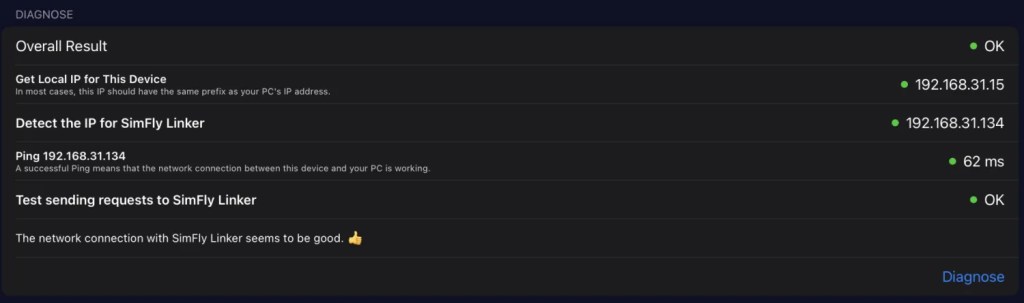
SimFly Pad includes a Connection Settings test page that can help you detect and identify some issues.
- Open the Connection Settings page on SimFly Pad (iOS) and click on Diagnose. If you are using the “automatic” mode, SimFly Pad will try to automatically obtain the IP address of the PC where SimFly Linker is located. If it fails, try manually entering the IP address at the top of the page and re-click Diagnose.
- During the test, if the Ping test shows green, it indicates success. If it shows red, it indicates a failure; please refer to the troubleshooting guide on the page for solutions.
Testing Method Two:
- You can test the connection between your mobile device and a specific IP address using third-party tools. For example, you can download a tool called iNetTools from the App Store and use its Ping test feature to test the connectivity between your mobile device and the PC.
Troubleshooting Guide:
- Ensure your mobile device and PC are connected to the same network.
- Confirm that your router does not have options like WIFI isolation or device isolation enabled.
- Try using the ADMIN button in the Connection Diagnose page of SimFly Linker to add an “Allow Local Network Rule.”
Windows Firewall Settings
If you can Ping successfully in the Connection Settings Diagnose test on SimFly Pad, but fail in the “test send request” step, it’s likely that your Windows firewall is blocking the connection.
Testing Method One:
- After clicking “Start” on SimFly Linker, open a browser (like Safari) on your SimFly Pad mobile device and enter http://xxx.xxx.xxx.xxx:39000/test (replace xxx.xxx.xxx.xxx with your SimFly Linker’s IP address). If you see a screen like the one below, it generally means all your configurations are correct, and SimFly Pad should work properly.

Testing Method Two:
- After clicking “Start” in SimFly Linker, you can go to the Connection Settings page on your SimFly Pad mobile device and click the Diagnose button. If it shows that everything is normal, as in the image below, then it means there is no issue with your firewall settings.
Troubleshooting Guide
- Open the Connection Diagnose page in SimFly Linker, click Start, and then check the diagnostic results to identify potential problems.
- After identifying the issue, you can use the ADMIN Action button on the same page to add a “SimFly Linker Rule” to set the firewall rule in one click.
- Check any running VPN software and try to disable them (for example, ExpressVPN can isolate your device).
- Ensure your SimFly Pad has Local Network Permission. (You can check this permission in the system settings)
If the above methods still do not resolve the issue, please feel free to contact us:
It would be even better if you could attach the Connection Diagnose results from both SimFly Pad and SimFly Linker.
Email: ethantoken@gmail.com
Discord: https://discord.gg/cU3U6gtX7x
 SeeingSky